



Quick and easy SSL from trusted roots
RapidSSL certificates are secure and issued instantly from trusted resellers spanning the globe.

Free security doesn’t guarantee you much
THAT'S WHY RAPIDSSL IS THE BETTER ALTERNATIVE.
We're the preferred brand for businesses and organizations that want more gurantees about their website security compared to free TLS/SSL providers. As a veteran in the industry, we undergo annual WebTrust Audits for Certificate Authorities to ensure our roots are always trusted and secure. Even more, our certificates are acceptied by all browsers across the web.
Compare TLS/SSL Certificates
RapidSSL DV
RapidSSL Wildcard
UPDATE
GeoTrust DV
SYMMETRIC 256-BIT ENCRYPTION

SECURES MORE THAN ONE DOMAIN
INCLUDES MANAGEMENT TOOLS
WARRANTY
$10,000
$10,000
$500,000
SUPPORT

Get support and bigger warranties when you upgrade
Access 24/7 English-based tech support via phone, chat and email and up to a $1.5M warranty when you upgrade to a GeoTrust TLS/SSL certificate. Get more support, vast Knowledgebase tools and automation features to help you manage certificates.
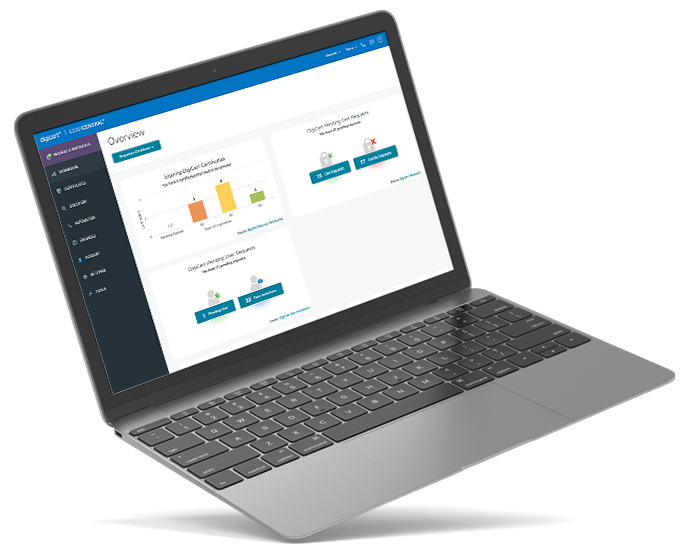
Upgrade your certificate for better insights and more tools
Get access to the award-winning console DigiCert CertCentral® when you upgrade your certificate to a GeoTrust certificate. Simplify tasks including certificate discovery, automating, issuing, installing, inspecting, remediating, renewing and avoiding outages.


